How to Download Instagram Reels on iPhone Without App (2026 Ultimate Guide)
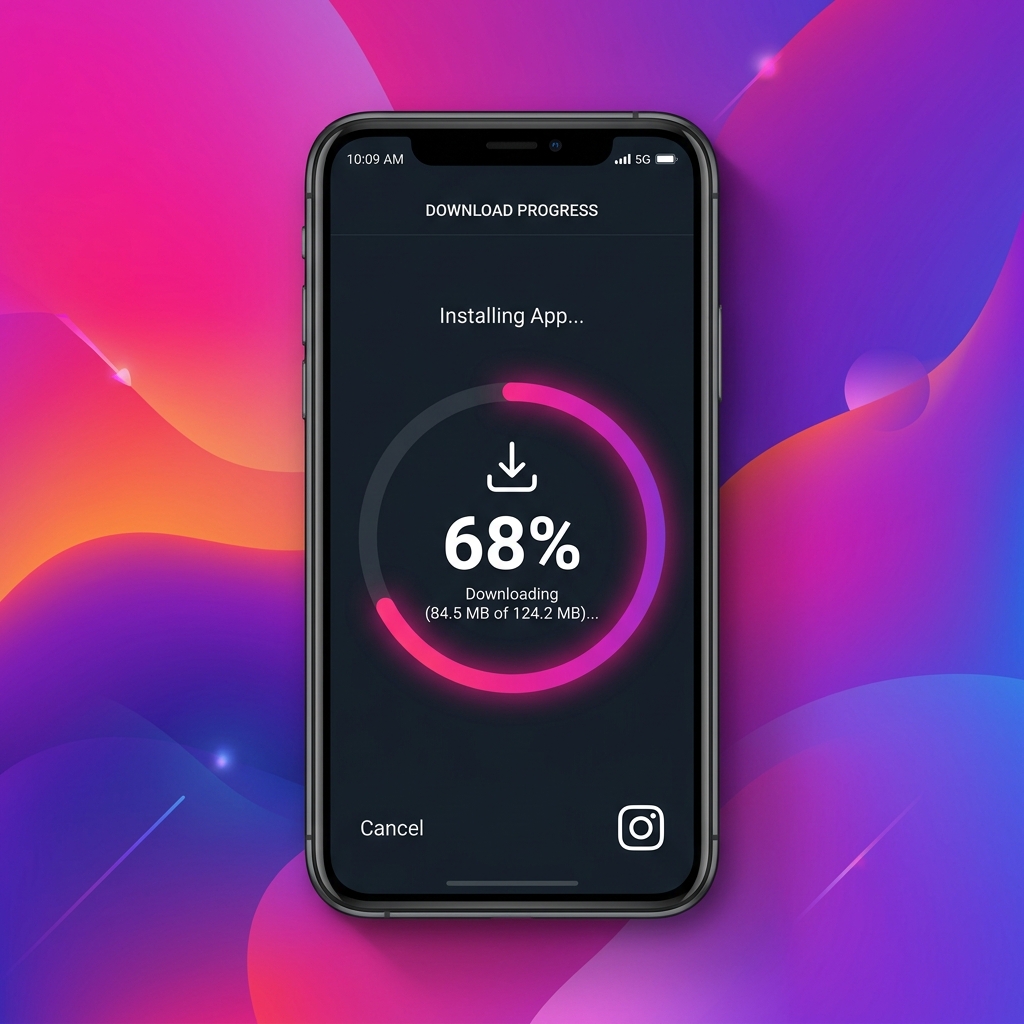
Introduction: The iOS Downloading Dilemma
Instagram Reels have become a primary hub for short-form entertainment, creator trends, and educational content. However, downloading these videos on an iOS device has historically been a major pain point. Because of Apple's strict file system sandboxing and Safari security boundaries, direct video downloading is not natively integrated. Many users resort to downloading suspicious App Store applications that push expensive weekly subscriptions, bombard them with intrusive video ads, or worse, require logging in with their Instagram credentials—posing a significant risk of account hijack.
The good news is that you don't need to install any external apps. In this ultimate guide, we will walk you through the technical process of using a clean, web-based utility like Reel Downloader4K inside Safari to save Instagram Reels in Full HD 1080p directly to your iPhone's Camera Roll.
Understanding the iOS File System and Safari Downloads
Before jumping into the steps, it is helpful to understand how iOS manages downloads. When you request a file download via Safari, the browser retrieves the stream from the web server and places it in the iOS Files app (typically under the "Downloads" folder in iCloud Drive or local storage). To make this video appear in your primary Photos app (Camera Roll), you must execute a secondary share action. This two-part system is designed by Apple to protect your storage from unauthorized background file writes, but it is extremely simple once you know the exact steps.
Step-by-Step Tutorial: Downloading Instagram Reels on iPhone without Apps
Step 1: Copy the Reel URL from the Instagram App
Open the Instagram app on your iPhone. Locate the Reel you wish to save. Tap the Share button (the paper airplane icon on the right side of the screen) and tap the Copy Link button at the bottom of the sharing tray. Alternatively, you can tap the three dots (⋯) in the upper right-hand corner of the Reel and select the copy option. The URL will now be saved to your iOS clipboard.
Step 2: Access Reel Downloader 4K in Safari
Exit the Instagram app and launch your Safari browser. Navigate to the homepage at reel-downloader4k.online. We recommend using Safari rather than third-party browsers like Chrome or Firefox on iOS, as Safari has the most stable integration with the native iOS Share Sheet and Files app.
Step 3: Paste and Process the Reel URL
Tap and hold the primary input field labeled "Paste Instagram Reel URL" and select Paste. Review the URL to make sure it includes the standard Instagram domain structure (e.g., https://www.instagram.com/reel/...). Once pasted, click the Download button. Our backend server will query the Instagram CDN servers to fetch the original uncompressed media stream and render the download options in under 3 seconds.
Step 4: Stream and Download the Video File
Scroll down to the newly displayed Result Card. You will see a preview of the Reel thumbnail along with available download files. Tap the Download HD MP4 button. Safari will display a native system dialogue window asking: "Do you want to download 'instagram-reel.mp4'?" Tap the blue Download button. You will see the download progress icon (a small downward arrow inside a circle) appear in the Safari address bar.
Step 5: Export the Video from Files to your Camera Roll
Once the download circle completes, tap the download icon in the Safari address bar and select the downloaded video file. This opens iOS's native media player. Tap the Share icon in the bottom-left corner of the screen to open the iOS Share Sheet. Scroll down and tap Save Video. The video file is now immediately exported to your Photos app and will appear in your Camera Roll under "Recents". You can now play, share, or edit the video offline!
Comparison: Web Downloader vs. App Store Utilities
Let's compare the different methods of downloading Reels on iOS to understand why browser-based tools are superior:
| Feature | Online Web Downloader (Reel Downloader4K) | App Store Downloader Apps | Instagram App Native Save |
|---|---|---|---|
| Cost | 100% Free Forever | Often requires $4.99/wk subscription | Free |
| Privacy | No login or cookies tracked | Requires account login (High Risk) | Requires active account |
| Watermarks | None (Fetch original CDN video) | Often adds custom logos | Adds Instagram branding overlays |
| Audio Track | Full audio preserved | Sometimes muted due to copyright | Muted on copyright-protected audio |
| Device Impact | No storage used, runs in sandbox | Occupies disk space, runs background processes | Official application |
Best Creator Workflows for Repurposing Content on iOS
If you are a social media manager or content creator, downloading Reels is often the first step in a larger repurposing workflow (e.g., cross-posting to TikTok, YouTube Shorts, or Pinterest Idea Pins). Here are some best practices when editing and compiling downloaded Reels on iPhone:
- Maintain High Quality: Always use the highest resolution MP4 provided by our tool. Avoid editing heavily compressed copies as they will look pixelated when uploaded to other platforms.
- Clean Meta tags: When you import the video into video editors like CapCut or Premiere Rush on iOS, ensure you export it with high bitrate configurations to prevent double-compression artifacts.
- Manage Local Storage: HD videos take up massive space. Regularly clean your iCloud Downloads folder once files have been safely migrated to Photos or cloud archives.
Legal Guidelines and Fair Use
Downloading content from the internet always carries responsibilities. Make sure you only download public Reels for personal backup, offline study, or educational fair use. If you plan to remix, repurpose, or re-upload a creator's work, always obtain their explicit written consent and provide clear attribution in your captions.
Frequently Asked Questions
Why is the downloaded video muted on my iPhone?
This usually occurs if your iPhone's physical silent switch (ringer) is turned on, which Safari respects by muting HTML5 audio. Flip the ringer switch on the side of your iPhone to turn on sound, or adjust your media volume slider.
Does this download private Instagram Reels?
No. Standard online utilities cannot bypass Instagram's privacy walls. A Reel must be public to be fetched via our serverless API.
Is there a limit to how many Reels I can download?
No. Reel Downloader 4K offers unlimited free downloads with no bandwidth caps or queues.
Does Safari keep my download history?
Yes, Safari keeps a temporary downloads history. You can clear it at any time by tapping the download icon in the search bar and clicking 'Clear'.